
Manage Agreements, Invoices & Payments
Generate the agreement and invoice from the deal, keep the receipt with the company, and chase outstanding money against a paper trail you can find.
What good looks like
Every paid (or almost-paid) relationship has a paper trail you can reopen in one place:
- A sponsorship agreement that names the company, package, and how they pay
- An invoice that matches the amount on the deal
- A receipt when money actually lands
Your treasurer and next year’s chair can find those files without DMing you. When AP asks for “the invoice again,” you send the version that went out, not a lookalike from Drive.
Paid or pending on the sponsor list is still the operational status. This step is the files that prove it.
Where it usually breaks
- Files scatter across Drive folders and email attachments.
- AP asks for the invoice again and nobody knows which version was sent.
- The agreement still says last year’s package, or names the wrong contact.
- Payment status on the list does not match the document trail.
- Receipts never land next to the company that paid.
How Anchor helps
In Anchor, agreements and invoices attach to the sponsorship for this campaign. Documents is where you generate them, browse what already exists, and keep receipts with the company.
Generate the agreement
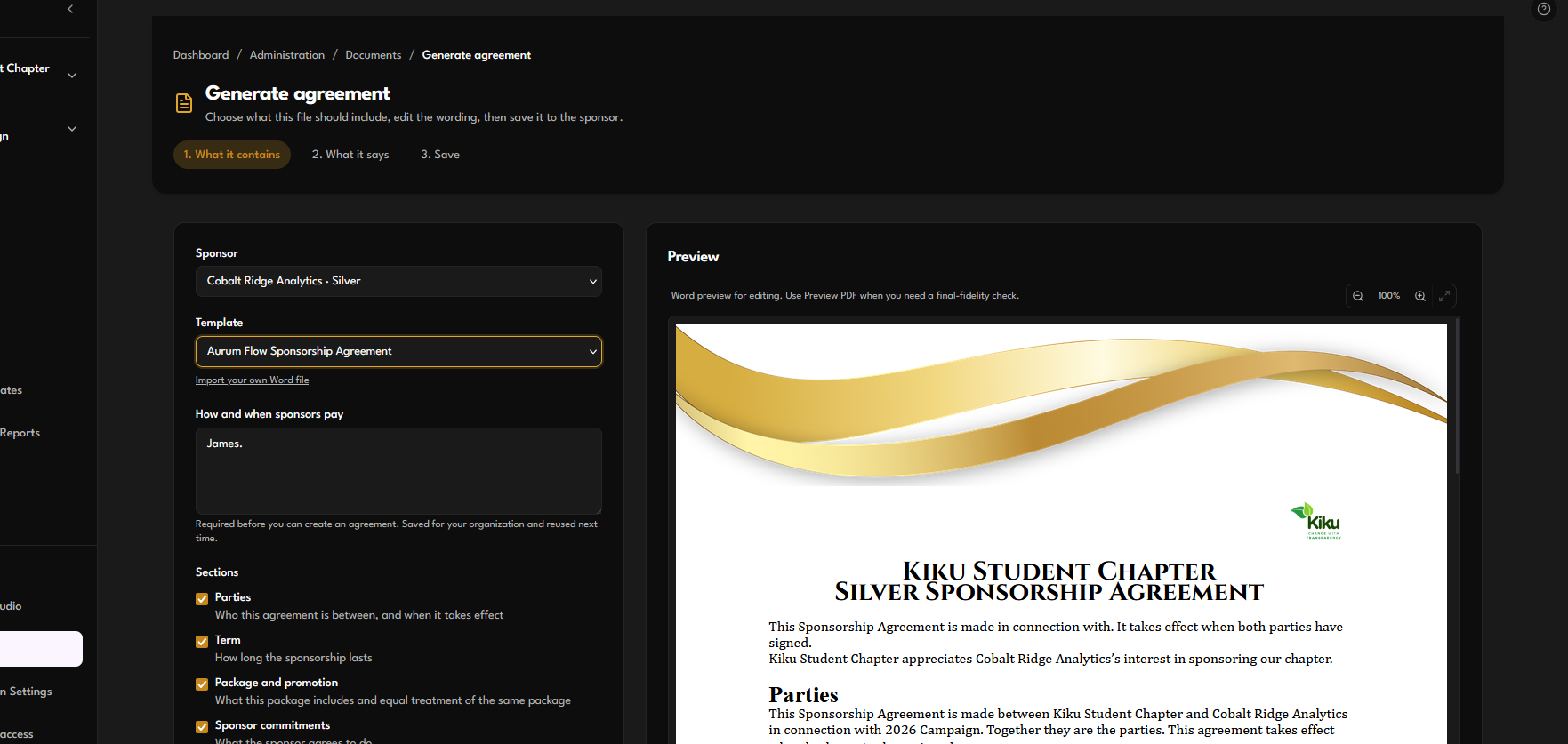
From Documents, Generate A New Agreement fills a Word layout from the deal you already have: company name, package, dates, and your payment instructions. You pick which clauses to include (payment, signatures, optional exclusivity) and can edit the wording before you save. From a sponsor’s page, the same flow starts with Generate Agreement.
Official layouts (Champagne Gold, Pine Teal, and the rest) are ready to use. If you put your logo on a layout, that becomes your copy of it. Other organizations keep the official version.
The first time you generate an agreement, Anchor asks how and when sponsors pay. That answer is reused on later agreements so you are not retyping wire instructions every time.
Word preview and PDF
While you edit, a Word preview shows the filled layout so you can check names and the look without waiting. Use Preview PDF when you need a print-ready check, a signature copy, or the file you will actually send. The PDF is the version that matches what you download as a final file.
Invoices vs receipts
Generate A New Invoice makes the bill from the same deal (amount, address when you have one, optional organization logo). It is not a receipt.
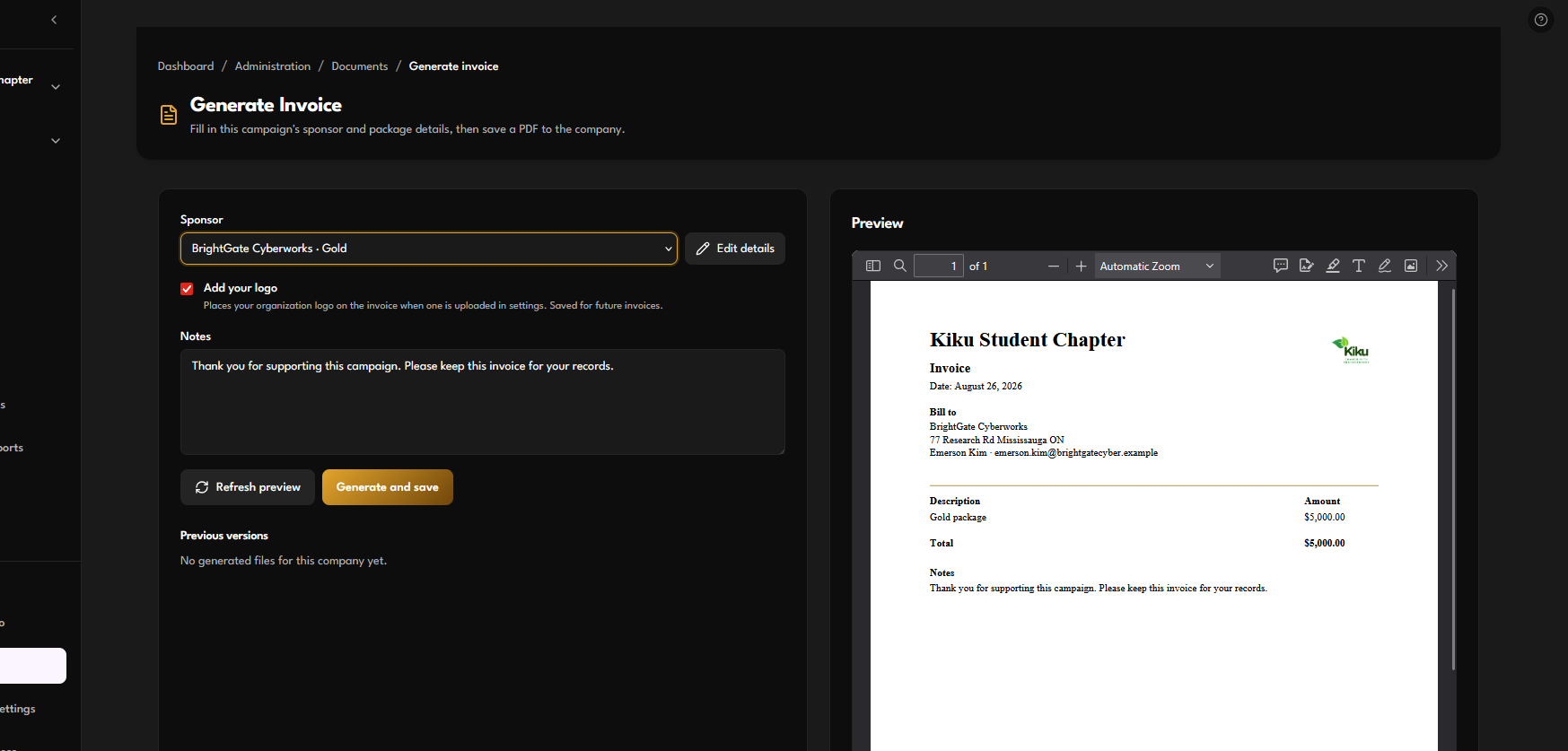
When payment clears, upload the receipt onto that sponsorship and mark the sponsor Paid. The Files tab is for browsing what is already stored. The sponsor list is still where you chase who is outstanding.
Templates
Under Documents → Templates you can:
- Preview official layouts
- Add your logo to a layout (this saves it as your own)
- Import a Word file if you already have a chapter template
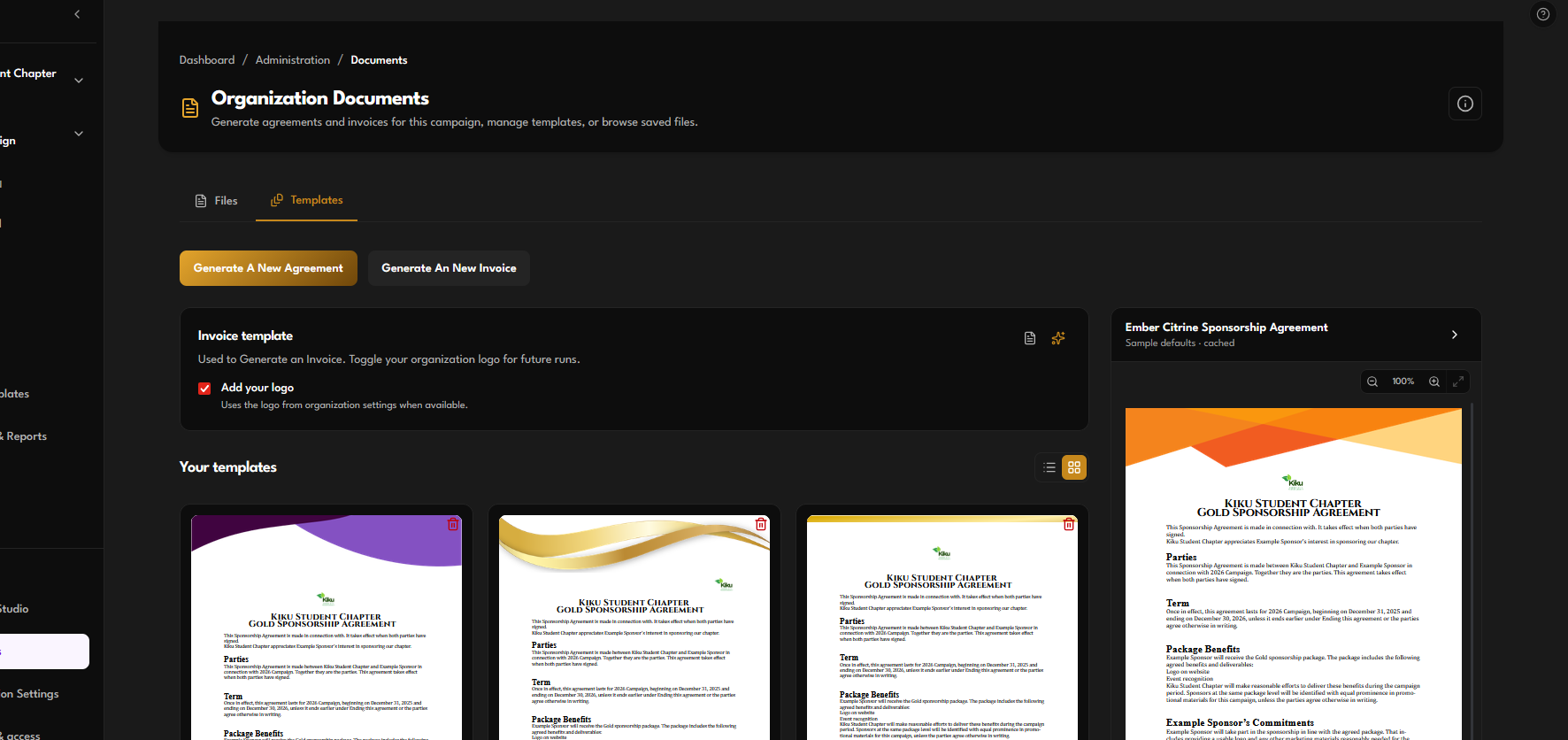
Most chairs never need to import a file. Start from an official layout, generate, and save to the deal.
Try it
- Open Documents (or jump from a sponsor’s Generate Agreement button).
- Choose the company, pick a layout, and skim the Word preview.
- Use Preview PDF before you send. Save the agreement to the deal.
- Generate the invoice the same way. Upload a receipt when money lands.
- Keep chasing from Sponsors filtered to Pending until the status matches the paper.